



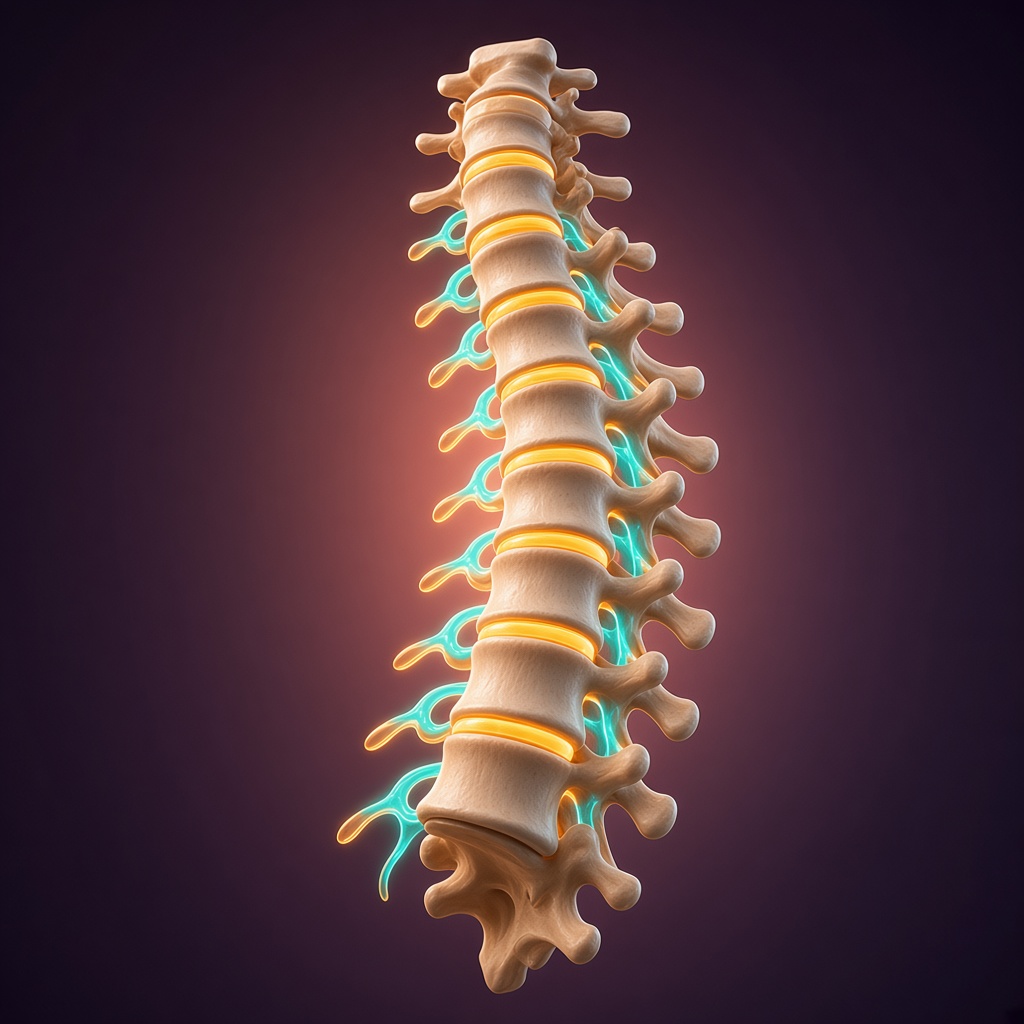
3D Anatomy Lab (.GLB)
Orbit the spine, shoulder, knee, and a labeled dissection of the muscles of the back.
Clinical Reasoning Arena
Branching outpatient simulation cases, red-flag triage & rehab sequencing.
Courses & Video Hotspots
Interactive clinical & NPTE video lessons, timestamped notes & printable P9-CERTs.
FSRS Flashcards
Spaced repetition scheduling with Again/Hard/Good/Easy memory intervals.
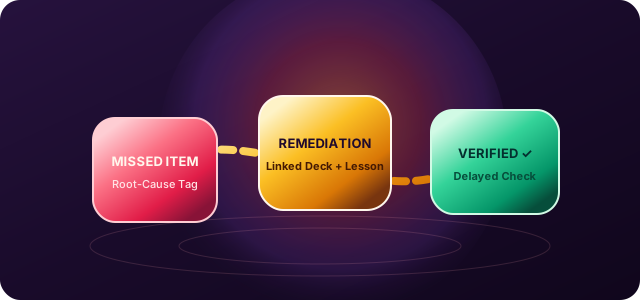
Mistake Remediation
Turn missed items into targeted study sessions with delayed verification.
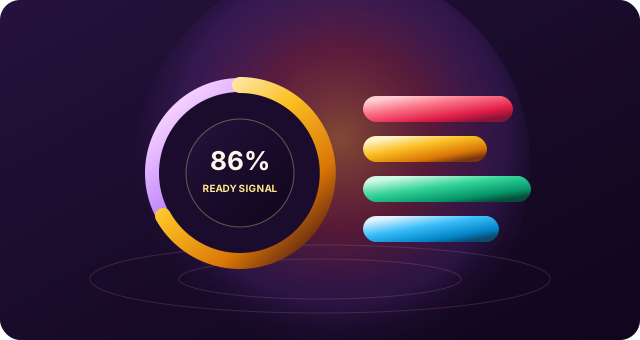
Scaled Mock Exams
200-item timed forms, section breaks, pacing analytics & readiness dial.
1. Getting started
- Open Create free account — name, email, and password (at least 8 characters).
- If email delivery is enabled on your environment, verify your email before learning routes unlock. If delivery is off, you go straight to the dashboard.
- Complete Onboarding when prompted (exam type and timezone). You can refine goals later in Settings.
- Use the left sidebar (desktop) or bottom nav (mobile) to move between study tools.
Demo / MOCK labels mean placeholder educational content for product demos — not official NPTE items.
2. Account & settings
Open Settings from the sidebar to manage your profile and preferences.
- Profile & study prefs — exam target, timezone, weekly hours, daily flashcard limits.
- Appearance — light, dark, or system; reduced motion if you prefer less animation.
- Security — password change, optional MFA for privileged roles, active sessions.
- Forgot password — use the link on the login page if you cannot sign in.
3. Dashboard & Continue Studying
The dashboard is your home base. Continue Studying picks the highest-priority unfinished work (open exam attempt, due flashcards, remediation, study-plan tasks, and so on) so you can resume in one click.
- Scan due reviews, open remediation, and shortcuts into Practice or Courses.
- Trust Continue Studying when you are short on time — it follows a fixed priority order, not a random pick.
4. Flashcards
Flashcards use spaced repetition. You only rate a card after you reveal the answer — that keeps scoring honest.
- Go to Flashcards and pick a deck, or start a due-review session.
- Read the front (or cloze / occlusion prompt). Reveal the back when ready.
- Rate how well you recalled it (Again / Hard / Good / Easy). Intervals update from your rating.
- Use bookmarks, notes, suspend, or report on a card when those controls appear.
- Check statistics and leeches when you want to see stubborn cards.
Keyboard shortcuts are available in the review player help control when you are in a session.
5. Practice quizzes
Practice is formative — it is not a scaled NPTE score. Rationales stay hidden until you submit the quiz.
- Open Practice.
- Choose Quick practice for a short set, or Custom to filter topics / systems when available.
- Answer each item. Use the navigator to move between questions.
- Submit when finished to see correctness, rationales, and links into remediation when applicable.
6. Mistakes & bookmarks
- Mistakes — revisit items you missed so you can restudy without hunting through old results.
- Bookmarks — saved questions or cards you marked for later.
7. Remediation
Remediation turns weak spots into a follow-up path. Completing an item is not the same as being “resolved” — some assignments still require delayed verification later so improvement is real, not a same-day re-click.
- Open Remediation to see open assignments.
- Start a session and work through linked practice or flashcard work.
- When verification is due, complete it from the remediation flow — do not skip the wait window.
- Use History to review what you have already finished.
8. Courses & lessons
Browse the course catalog, open a course outline, and work through lessons. Free accounts can usually preview; full lesson completion and quizzes often need a Standard (or higher) plan.
- Open Courses and choose a course.
- Follow the curriculum sidebar into a lesson.
- Watch or read the lesson content, then take the lesson quiz when available.
- Quiz rationales appear after submit. Mastery evidence (quiz + retention + practice) is tracked when those signals exist — it is not an official readiness score.
9. Study plan
A study plan schedules daily or weekly tasks across your tools. Access typically requires a Standard plan or higher. If the sidebar shows Study Plan as locked, open Plans to see upgrade options.
- Open Study Plan.
- Generate or refresh a plan when prompted (uses your onboarding targets when set).
- Complete tasks as they come due — marking complete advances the plan.
10. Mock exams
Exams simulate timed forms. Scaled mock forms usually need Premium access. Scores here are educational estimates — not official FSBPT results.
- Open Exams and choose an available form.
- Start the attempt. Answer, mark for review, and use breaks only as the UI allows.
- Submit when finished (or when time ends) and review the results breakdown.
- Resume an in-progress attempt from Dashboard → Continue Studying or the Exams list.
11. Adaptive practice
Adaptive practice adjusts item selection based on your performance signals. You can usually open the landing page freely; starting a session typically needs Premium (or institutional) access.
- Open Adaptive.
- Start a session when entitled.
- Answer items as they appear; submit to see results.
12. Clinical Arena
Clinical Arena is a branching case simulator (for example Clinical Detective). Cases marked [MOCK] are fixtures for learning the product — not clinical advice and not NPTE-equivalent cases.
- Open Clinical Arena.
- Enter Clinical Detective (or another published game) and start a case.
- Read the chart, choose actions stage by stage. Safety-critical choices affect the debrief band.
- Finish for a formative debrief. Preview / admin modes never award student XP.
13. 3D Anatomy Lab
Explore published 3D models and take identify-structure quizzes. Scoring is server-checked — the browser does not decide correctness. Current fixtures may use abstract placeholder structures (not commercial anatomy atlases).
- Open 3D Anatomy Lab.
- Explore a model: orbit, select meshes, and review mapped structure labels when published.
- Start an Identify quiz, select the requested structure, and submit for feedback.
- Hints and results stay formative; they do not unlock exam answers elsewhere.
14. Analytics & readiness
Analytics summarize study volume, topic exposure, and readiness-style estimates from your activity. Treat every chart as a study aid — not an official NPTE prediction. Supplemental modules (Arena, Anatomy) appear with their own disclaimers when present.
15. Achievements & rewards
XP and badges reward verified study habits. Levels are motivational titles only. Cosmetics in the reward store never unlock answers, scores, or paid features. Public leaderboards stay off unless explicitly enabled.
16. Notifications
In-app notifications surface due reviews, remediation reminders, and system messages. Open Notifications, mark items read, or mark all read when you clear the queue. Production email/SMS channels may be disabled on staging — the inbox inside the app still works.
17. Plans & access
Compare Free / Standard / Premium / Institutional on the Plans page. Checkout may show “opening soon” while payments stay disabled. Feature locks in the sidebar (for example Study Plan) point you here when an upgrade is required.
| Capability | Typical access |
|---|---|
| Flashcards & basic practice | Free+ |
| Course previews | Free+ |
| Full courses & study plan | Standard+ |
| Adaptive sessions & scaled mocks | Premium+ |
| Clinical Arena / Anatomy Lab | Entitled (often Free+) |
| Cohort instructor tools | Institutional |
18. Instructor & admin (brief)
- Instructors — cohort dashboard, assignments, and member reports when institutional access is granted. Look for Instructor in the sidebar.
- Admins — content bank, authoring, clinical games, anatomy models, entitlements, users, ops, and feature flags under Admin. Student accounts cannot open these routes.
19. Tips & honesty notes
- Prefer short daily sessions over cramming — flashcard due queues and remediation work best with consistency.
- Reveal flashcard answers before rating; submit practice/exams before reading rationales.
- Ignore any third-party claim that this platform is FSBPT-official — it is independent prep software.
- Content marked MOCK or fixture is for product learning, not clinical decision-making.
- Need help? Email hello@physiotherapy9.com or see Accessibility.